Gmail Tips: How to Organize Inbox with Labels & Filters
How to Organize Filters
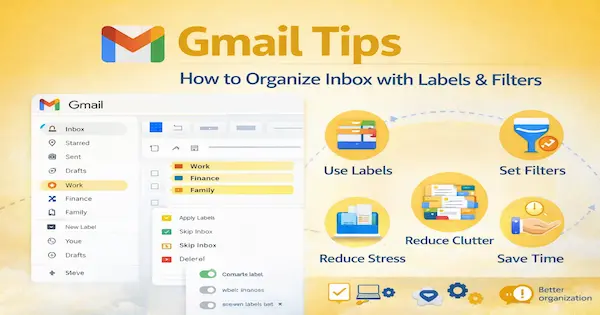
A cluttered Gmail inbox can be stressful and time-consuming. Important emails get lost among promotions, updates, and notifications. Gmail offers powerful tools like labels and filters to solve this problem. With the right setup, your inbox can stay clean and organized.
In this guide, you will learn simple Gmail tips to organize your inbox. These methods work for students, professionals, and business users. You do not need any technical skills. Just a few smart settings can save hours every week.
Understanding Gmail Labels and Filters
What Are Gmail Labels?
Labels in Gmail work like folders, but with more flexibility. One email can have multiple labels at the same time. This makes sorting and searching much easier. Labels help you group similar emails together.
What Are Gmail Filters?
Filters are automatic rules that Gmail follows. They act on emails as soon as they arrive. Filters can apply labels, archive messages, or mark them as important. This reduces manual effort.
Why Inbox Organization Matters
Save Time Every Day
An organized inbox reduces search time. Important emails are easy to find. You spend less time scrolling. Productivity improves naturally.
Reduce Stress and Overload
Too many unread emails can cause anxiety. A clean inbox feels manageable. You stay focused on priority messages. Digital stress is reduced.
How to Create Gmail Labels
Step-by-Step Guide
- Open Gmail on your computer
- Scroll down the left sidebar
- Click on “Create new label”
- Enter a label name (for example: Work, Bills, Family)
- Click “Create”
You can also create nested labels. This means labels inside labels. It helps with advanced organization. For example, Work → Projects → Reports.
Color Coding Labels
Gmail allows you to add colors to labels. Colors help you recognize emails quickly. Important labels stand out visually. This improves inbox clarity.
How to Create Gmail Filters
Creating a Filter from an Email
- Open an email you want to filter
- Click the three-dot menu
- Select “Filter messages like these”
- Choose filter conditions
- Click “Create filter”
Choosing Filter Actions
Filters can perform many actions. You can apply labels automatically. Emails can skip the inbox. They can also be marked as read.
- Apply a label
- Archive emails
- Mark as important
- Delete spam emails
Smart Ways to Use Labels and Filters
Organize by Purpose
Create labels based on email purpose. Examples include Work, Finance, and Education. This keeps related messages together. It simplifies follow-ups.
Manage Newsletters and Promotions
Newsletters often flood the inbox. Create a label for subscriptions. Use filters to skip inbox. Read them only when needed.
Key Benefits
Benefits of Using Gmail Labels
- Clear inbox structure
- Easy email categorization
- Faster searching
- Better visual organization
Benefits of Using Gmail Filters
- Automatic email sorting
- Less manual work
- Reduced inbox clutter
- Improved productivity
Common Mistakes to Avoid
Creating Too Many Labels
Too many labels can be confusing. Keep names simple and meaningful. Avoid unnecessary categories. Simplicity works best.
Overusing Skip Inbox
Important emails may get missed. Test filters before relying on them. Review filtered emails regularly. Adjust rules when needed.
Frequently Asked Questions (FAQ)
Are Gmail labels the same as folders?
No, labels are more flexible. One email can have multiple labels. Folders allow only one location.
Can I edit or delete filters later?
Yes, Gmail allows full control. Filters can be edited anytime. You can also delete unused filters.
Do filters work on mobile?
Filters are created on desktop. Once created, they work everywhere. Mobile apps apply them automatically.
Is inbox organization useful for non-work emails?
Yes, it helps manage personal life. Bills, alerts, and services stay organized. Important messages are never missed.
Conclusion
Take Control of Your Gmail Inbox
Gmail labels and filters are powerful tools. They turn chaos into order. With a small setup, big results follow. Inbox management becomes effortless.
Start with a few labels and filters. Improve them over time. A clean inbox supports focus and clarity. Organized email leads to organized work.

